
IPTV Ads and Popups: Where They Come From and How to Stop Them

IPTV ads and popups appear in three different places: inside the player interface, overlaid on the stream itself, or injected by the page you used to reach a service. Knowing which one you are seeing tells you whether a setting will fix it, whether you should change players, or whether the source of the stream is the problem. Below is how to identify each type, what you can legitimately remove, and where ads are a signal rather than an annoyance. Photo: luis_molinero on Magnific The three places IPTV ads come from Player interface ads Free players often carry banner space, a splash screen on launch, or a “recommended” row. These are part of the app’s business model and are usually removed by buying the paid tier of that app or by switching to a player you have already paid for. Overlay ads on the stream An overlay burned into the picture — a ticker, a logo, a countdown — is coming from the feed, not from your device. No setting on your TV will remove it, because it is part of the video being delivered. Popups in the browser Popups that open new tabs are typical of web pages that host channel lists or player downloads. These are the ones worth blocking at the browser level, and they are also the ones most worth treating with suspicion. How to tell which type you are dealing with Pause the stream. If the ad pauses with the video, it is burned into the feed. Move to a different channel. If only one channel carries it, it is the source feed. Close and reopen the player. If the ad appears before any stream loads, it belongs to the app. Check whether the ad follows you into another app. If it does, it is coming from the page or package you installed, not the player. That last check is the important one. An advertisement that survives changing apps is usually delivered by something you installed alongside the player, and that is worth removing. Legitimate ways to reduce IPTV ads and popups Use the paid tier of your player — the cleanest fix, and the one that keeps the developer paid. Enable the player’s ad-free option — many apps have a setting under display or privacy that removes banners without a purchase. Block popups in the browser — turn on the popup blocker and allow notifications only for sites you trust. Install apps from the official store for your device — sideloaded packages from unknown sources are the usual route for adware. Review app permissions — a player that wants notification access or accessibility rights is asking for more than it needs to decode video. Change the source — if the picture itself carries intrusive overlays, a different provider is the only real fix. For the permissions side of this, our IPTV privacy and security guide covers what a player realistically needs. When ads are a warning sign Some advertising is not just revenue — it is a signal. Aggressive popups that trigger downloads, redirect you to credential-entry pages, or claim your device is infected are a reason to close the tab rather than interact with it. The same applies to players that surface “update required” prompts outside an official store. Read our breakdown of whether IPTV is legal for the wider context: licensed services in the United States are generally funded by subscription, which is exactly why a heavily ad-laden stream is worth questioning. If you would rather compare properly funded options, our roundup of legal alternatives to IPTV lists services that do not rely on injected advertising, and how to review an IPTV service explains what to test before paying. Frequently Asked Questions Why do ads keep appearing over my stream? Most often the overlay is part of the delivered feed. If it appears across multiple apps, check what you installed alongside the player, because that points to adware rather than the stream. Can an ad blocker remove IPTV ads? Browser blockers handle page popups effectively. They do nothing for overlays inside a video stream or for ads rendered inside a standalone app. Are IPTV popups dangerous? Not inherently, but popups that imitate system warnings or ask for login details should be closed without interaction. Block them and, if they continue, remove the source. Is paying for a player enough to remove ads? For player-level banners, usually yes. It will not affect ads that are part of the video feed itself, which requires changing the source.
IPTV Voice Control With Alexa and Google Assistant
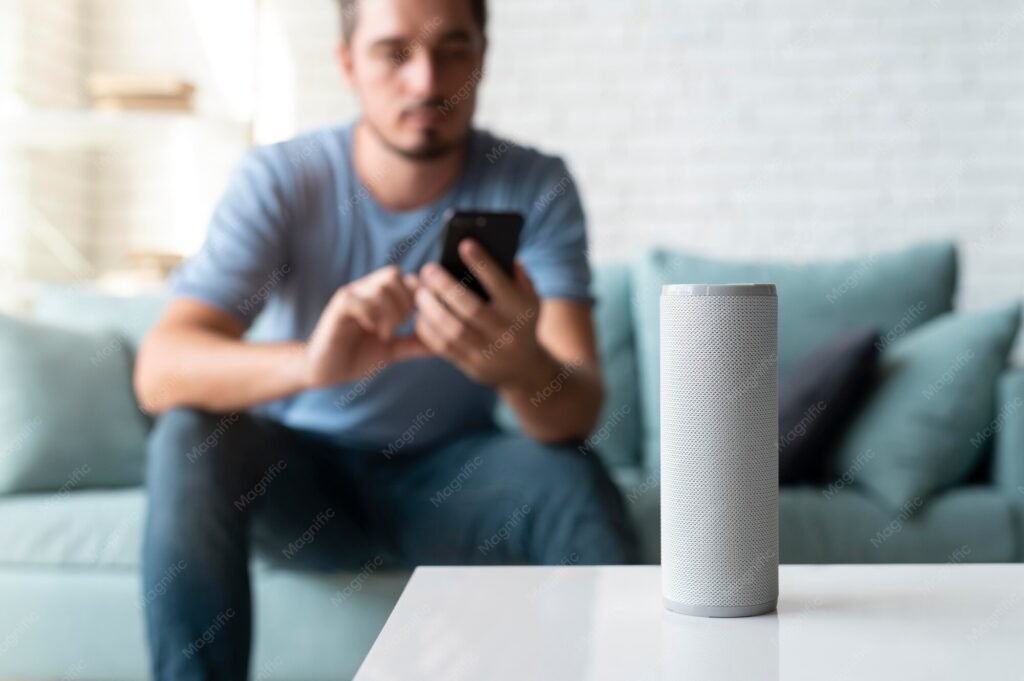
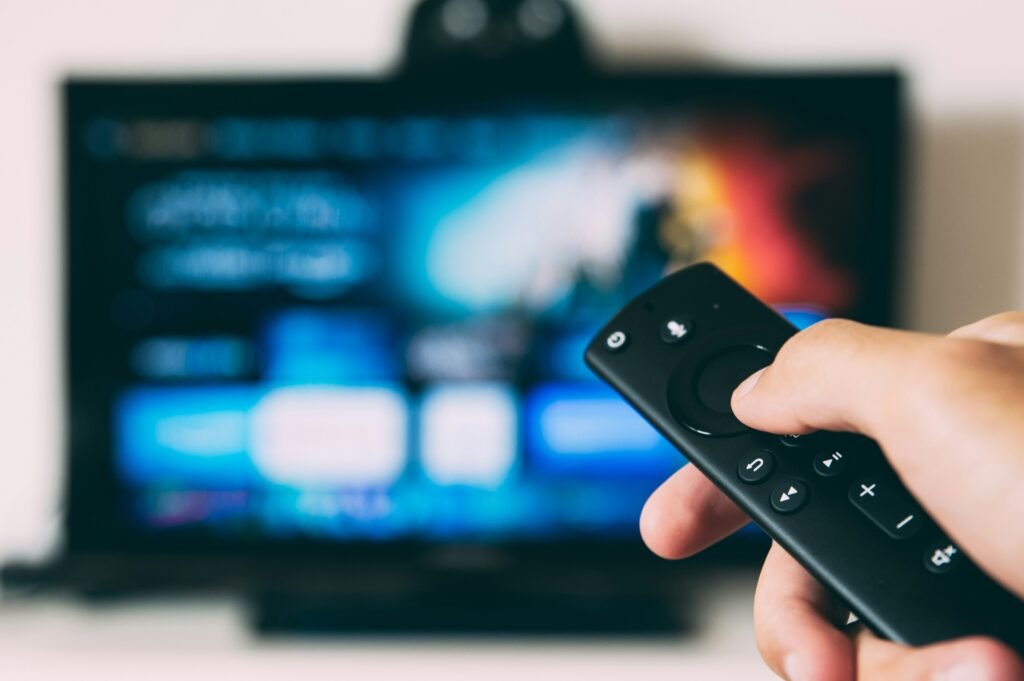
IPTV voice control lets you change channel, pause a stream or search a playlist hands-free through Alexa or the Google Assistant instead of typing on an on-screen keyboard. It works best when the player you use exposes itself to the assistant, and it falls flat when it does not — so the setup steps below matter more than the wording you speak. Here is how voice control actually behaves on IPTV, what to configure on both sides, and which commands are realistically available today. Photo: magnific on Magnific What IPTV voice control can and cannot do Voice assistants integrate with streaming apps through skills and device links. The commands that are reliably available: Playback control — play, pause, resume, stop, rewind and fast-forward. Volume and mute — “turn it up”, “mute”, “set volume to thirty”. Launching an app — opening a supported player by name on a compatible streaming device. Content search inside a linked app — asking for a programme by name when the app supports it. Device control — turning the TV on or off, switching inputs, and controlling a Fire TV Stick by voice. What it generally cannot do is drive a raw M3U playlist. Voice assistants do not browse a text file of channel links for you; they interact with recognised apps and devices. If your IPTV setup is a bare playlist loaded into a player, expect playback control at best, and expect nothing until that player is linked. Set up Alexa for IPTV Open the Alexa app and confirm your streaming device or smart TV is listed under Devices. Open Skills & Games, search for the streaming app you use, and enable its skill if one exists. Link the skill with the same account you use inside the app. A mismatch here is the most common cause of “I don’t find that” replies. Ask Alexa to launch the app by name and start playback to confirm the link works. Group the TV and speaker in the same room so a bare “play” or “pause” routes to the right device. If you are still choosing the box this runs on, our best Firestick for IPTV in 2026 list covers devices with Alexa built in, and IPTV Firestick setup covers the install side. Set up Google Assistant for IPTV On an Android TV or Google TV device, sign in with the same Google account the assistant uses. Open the Google Home app, confirm the TV appears, and check it is in the correct home and room. Link the streaming app’s account under Works with Google if the app offers it. Assign the TV as the default media device for casting and playback requests. Test with a launch command and a playback command before relying on it. Android TV users can continue with our IPTV Android TV setup guide for the app installation steps that come before this. Photo: magnific on Magnific Voice remote vs smart speaker There are two distinct ways to control IPTV by voice, and they are often confused: Voice remote — the microphone is on the remote, commands go straight to the streaming device, and there is no account linking involved. This is the more reliable option for channel surfing. Smart speaker in the room — the request travels to the cloud and back to whichever device the assistant considers active. It works from the sofa without holding anything, but it depends on the app being linked and on the correct device being targeted. Most households end up using both: the remote for what they are watching now, and the speaker for hands-free moments. Our overview of IPTV remote control apps covers the app-based alternative if you would rather use a phone. Troubleshooting voice commands “I don’t see that device” — the phone and the assistant must share an account with the TV, and both must be on the same network. Command runs on the wrong screen — set the default playback device and check the room grouping. App launches but will not play — the skill is linked but the session inside the app has expired. Open the app once and sign in again. Search returns nothing — content search only works where the app implements it. Channel names from a raw playlist usually are not indexed. Works, then stops responding — check for muted microphones on the speaker, and for software updates pending on the TV. If audio arrives but the picture fails, that is a different problem — see our fixes for IPTV audio not working. Frequently Asked Questions Can Alexa change IPTV channels for me? Only when the player or streaming service is linked to Alexa and exposes channel selection. With a bare playlist, expect playback and volume control rather than direct channel hopping. Do I need a smart speaker to use voice control? No. A voice remote on a Fire TV Stick or Google TV remote gives you hands-free control on the device itself, with no speaker required. Why does the assistant say it cannot find my TV? Usually an account mismatch, a device on a guest network, or the TV not being assigned to a room. Re-check all three before reinstalling anything. Does voice control work when the internet is down? No. Assistant commands are processed in the cloud, and the IPTV stream itself needs the connection too. Local app controls on the remote continue to work.
How to AirPlay IPTV to Your TV: iPhone and iPad Screen Mirror
AirPlay IPTV means mirroring or casting a live stream from an iPhone or iPad to a television without plugging in a cable or installing a player on the TV itself. It is the simplest option for Apple users who already have a playlist loaded on their phone and want the picture on the big screen. This guide covers what you need before you start, how to screen mirror IPTV step by step, when to use the in-app cast button instead, and what to check when the mirror drops out mid-match. Photo: magnific on Magnific What you need before you start A receiving device with AirPlay — an Apple TV, a smart TV with AirPlay 2 built in, or a TV connected to an AirPlay-capable streaming box. The iPhone or iPad and the TV on the same Wi-Fi network — this is the most common reason a mirror never appears in the device list. An IPTV app that can play your stream — AirPlay only moves a picture that is already playing on the device, so the stream has to load on the phone first. A stable connection on both ends — if the phone is on a weak signal, the mirrored picture will stutter even when the TV is wired. If you are still building your setup from scratch, our what is IPTV explainer covers the basics before you commit to hardware. How to screen mirror IPTV from iPhone or iPad Open your IPTV app and start the channel you want to watch, so you know the stream itself is working. Swipe down from the top-right corner of the screen to open Control Center on an iPhone with Face ID, or swipe up from the bottom edge on models with a Home button. Tap Screen Mirroring (the two overlapping rectangles). Select your television or Apple TV from the list. Enter the on-screen code the first time you connect. The phone screen should now appear on the TV. Keep the IPTV app in the foreground. Returning to the home screen will mirror the home screen instead of the stream. To stop, tap Screen Mirroring again and choose Stop Mirroring. Prefer the in-app cast button Some IPTV players expose an AirPlay or cast icon inside the player itself. That path is usually smoother than full-screen mirroring, because the television pulls the stream directly instead of receiving a continuous copy of your phone display. It also lets you keep using the phone while the TV keeps playing. If the app you use has the button, use it first and fall back to Control Center mirroring only when it does not. Why AirPlay IPTV drops out, and how to fix it No device in the list — confirm both devices are on the same network, and that they are not separated by a guest network or a client-isolation setting on the router. Black screen with sound, or the reverse — stop and restart the mirror, then reopen the stream. Protected streams and some apps behave differently when mirrored than when cast. Mirror connects but never shows video — close the app completely, reopen it, and start playback before reconnecting Control Center. Stuttering picture — move the phone closer to the access point, or reduce the stream quality in the app so the phone has headroom for encoding the mirror. Mirror stops when the screen locks — keep the display awake, or use the in-app cast button, which does not depend on the phone screen staying on. Sudden disconnects after a few minutes — restart both the phone and the TV, then test again on a different channel to rule out the stream itself. Choppy playback is not always the mirror. If the same channel stutters on the phone before you connect, read our fixes for buffering every few seconds. When AirPlay is not the best route AirPlay is ideal when the phone is the source of the stream. It is less ideal for all-day viewing, because the phone stays busy encoding the mirror and the battery drains quickly on mobile data. Two alternatives are worth considering: Chromecast or Google Cast — the television fetches the stream itself, so the phone can be locked or put away. Our Chromecast IPTV setup guide walks through that path. A dedicated player on the TV — installing an IPTV app directly on a Fire TV Stick, Android TV or Apple TV removes the phone from the loop entirely. See how it works in our IPTV on Firestick setup. For iPhone users comparing apps, our picks for the best IPTV app for iPhone include several with native AirPlay support. Frequently Asked Questions Does AirPlay IPTV use more data than watching on the phone? Mirroring sends the phone’s display to the TV over your local network, so it does not add mobile data usage while you are on Wi-Fi. The stream itself still consumes bandwidth from your internet connection as normal. Why is there no sound when I mirror IPTV to the TV? Check that the TV is selected as the audio output, and that the phone’s silent switch is not muting media. Some apps also allow you to choose an AirPlay audio device separately from the video. Can I mirror IPTV while using other apps on my phone? Full-screen mirroring follows whatever the phone displays, so yes, but the TV will show whatever you open. The in-app cast button is better if you want the stream to keep playing independently. Is AirPlay available on every smart TV? No. AirPlay support depends on the TV model and its software version. If your set does not have it, a Chromecast, an Apple TV or a Fire TV Stick will give you the same result.
IPTV for Travel Nurses: TV That Travels With You

IPTV for travel nurses addresses a real inconvenience: television that does not care whether you are in a furnished rental for thirteen weeks or back home for four days. Because IPTV follows your account rather than your address, one subscription can work in every assignment. This guide covers what to check when you watch from temporary housing, which devices are worth carrying, and how to keep streams stable on unfamiliar networks. Why IPTV suits short-term assignments No installation. There is no technician visit and no equipment to return when an assignment ends. No address lock-in. The service travels with your account, so you are not re-subscribing every time you move. No cancellation friction. Monthly terms mean you can pause between contracts without a termination fee. Fits temporary housing. A streaming stick and a login work in a furnished place where you cannot drill walls or run cable. What to check before subscribing Simultaneous streams. If family at home watches while you are away, confirm the plan allows two connections at once. Device limits. Some services cap how many devices can be registered, which matters if you rotate between a TV, tablet and laptop. Channel list. Confirm news, sports and the networks you actually watch — including local stations if you follow a specific market. On-demand and catch-up. Useful on long shifts when you miss live broadcasts. Cancellation terms. Read them before paying, not after. Support hours. Night-shift schedules mean you may need help at unusual times. Devices worth carrying A streaming stick The single most useful item. It fits in a bag, plugs into any HDMI television in a rental, and keeps your sign-in and favourites with you rather than on a TV you do not own. A phone or tablet Already in your bag, and a player app works on hotel and rental Wi-Fi alike. A travel router Worth considering if your housing has weak Wi-Fi. It can connect once and share a more stable signal with your TV. Installation is covered step by step in our guide to IPTV on Android, which applies to a phone, a tablet or an Android TV box. Keeping the stream stable in temporary housing You do not control the router, the wiring or the number of tenants sharing the connection. What you do control: Test the connection where the TV will be, not where the router sits. Ask for the router location. In some rentals it is in a cupboard or behind furniture, which kills the signal. Use 5 GHz when close, 2.4 GHz when far. The lower band travels further through walls. Plug in where possible. Ethernet on your own stick or box removes the variable entirely. Lower the picture quality on shared or metered connections — the data saving is substantial and the visual difference on a small screen is minor. Test in the evening, when the building’s usage peaks. If streams keep dropping, work through our IPTV buffering troubleshooting guide in order before changing provider. Security on unfamiliar networks Temporary housing and hotel Wi-Fi are shared networks. Sensible habits: Do not enter account credentials on a network you do not control without protection in place. Use your phone’s own connection for sign-in and account management. Keep the player and device firmware updated. Use a unique password for your IPTV account. Sign out of any device you leave behind at the end of an assignment. How the technology works If you are new to internet-delivered television, our explainer on how IPTV works covers the delivery path from encoder to your screen, and our IPTV for travellers guide addresses hotels, rentals and crossing state lines. A practical checklist for your next assignment Confirm your plan’s stream and device limits. Pack the streaming stick and its power adapter plus a short HDMI cable. Sign in and test before your first shift, not after. Verify the channels you care about on the property’s actual connection. Set picture quality appropriate to the connection you have. Sign out of any shared television when you leave. Plan and channel details are covered in our overview of IPTV subscriptions. Frequently Asked Questions Does IPTV work in temporary housing? Anywhere with a stable internet connection works. Bring your own streaming stick so you are not dependent on the apps installed on someone else’s television. Can my family watch at home while I am on assignment? If your plan allows two simultaneous streams, yes. Confirm the limit before subscribing rather than assuming it. Do I need to update my address? IPTV is delivered over the internet and does not depend on a service address the way cable or satellite does. Check your provider’s terms for anything specific. Is hotel or rental Wi-Fi safe for streaming? Streaming is fine, but treat shared networks as public: avoid entering account credentials on them and keep your device and apps updated.
How to Watch Hindi and Indian Channels on IPTV
Watching Hindi and Indian channels on IPTV is straightforward once you know what to check: the language categories a service carries, whether regional networks are grouped properly, and whether subtitles and audio tracks are supported on the device you plan to use. This guide covers the channel types to look for, how to evaluate language coverage honestly, and the setup steps that get everything working on a television, phone or streaming stick. Types of Indian and Hindi channels on IPTV Hindi news Rolling Hindi news bulletins are among the most commonly requested channels. Check which specific networks are carried, because availability varies service to service. Hindi entertainment General entertainment channels carrying serials, reality programming and films. On large line-ups these are usually grouped together, which makes them easy to verify in one place. Regional language channels India’s language groups — Tamil, Telugu, Malayalam, Kannada, Bengali, Marathi, Punjabi and others — are separate from Hindi. If a regional language matters to your household, confirm those channels individually rather than assuming a “Hindi” grouping covers them. Bollywood and on-demand films Film libraries are typically part of the on-demand catalogue rather than live channels. Quality and freshness vary widely between providers, so treat on-demand as a bonus, not a deciding factor, unless it is central to what you want. Devotional and kids’ programming Often present but easy to overlook in a channel list. Search for them by name if they matter to you. How to verify language coverage before paying Search the published channel list by network name, not by category label. Count languages explicitly. A list that says “international” may carry very little in any single language. Check the groupings. Channels should be filed under their language so you are not scrolling a single undifferentiated block. Check subtitle and audio options on your actual device — support is set by the player, not the provider. Check the electronic program guide in the right script and time zone. Check the last updated date on the list you are reading. Our guide to IPTV international channels covers how to assess multi-language coverage in more depth. Setting up to watch Hindi channels Install a reputable IPTV player on your TV, streaming stick, phone or computer. Enter the M3U URL or server credentials your provider issued. Let the full channel list and guide finish loading. Filter or search for the language groups you want, then add them to favourites. Reorder the groups so your preferred language is the first thing you see. Test a few channels at different times of day to confirm stability during prime time. Device-specific instructions are in our guides to IPTV on Android and setting up IPTV on a smart TV. Subtitles, audio and encoding Two technical points cause most disappointment: Character rendering — some players do not render Devanagari or other scripts correctly, showing boxes instead of text. Switch to a player with proper Unicode support if that happens. Audio track selection — if a channel carries more than one audio track, confirm your player exposes the track selector. On some devices it is buried in the player’s settings rather than shown during playback. Data and connection considerations Live television uses data continuously. If you are watching on a mobile or limited connection: Lower the picture quality setting — on a phone or tablet the visual difference is small and the data saving is large. Prefer a wired connection on the main television. Test during prime time in your region, when both the service and your network are busiest. Keep the player updated for playback fixes. For the diagnostic order when streams freeze, see our IPTV buffering troubleshooting guide. Choosing a provider Confirm the specific channels and languages on the current published list. Check simultaneous stream limits if more than one person watches. Start with a single month, not an annual plan. Confirm cancellation terms in plain language before paying. Test support responsiveness before you commit. The full range of channels a service should expose is set out in our IPTV channel list reference. Frequently Asked Questions Do all IPTV services carry Hindi channels? No. Language coverage is one of the biggest differences between services. Only the provider’s published channel list answers this for a specific subscription. Can I watch regional language channels too? Often, but they are separate from Hindi. Check each language group individually rather than assuming one category covers them all. Why does some text show as boxes on screen? The player is not rendering the script correctly. Switching to a player with full Unicode support usually fixes it. Will subtitles work? That depends on the player and the channel, not just the provider. Test the device you intend to use during a trial period.
IPTV for Truckers: Watching Live TV on the Road

IPTV for truckers solves a specific problem: television that follows you rather than staying wired to one house. Between truck stops, rest areas and lot parking, the difference between a service that works on mobile data and one that only works on home fibre is the whole decision. This guide covers what to look for when you watch from the road, which devices make sense in a cab, and how to keep a stream running on inconsistent connections. What truckers need from an IPTV service Mobile-friendly streaming — the service must hold up on hotspot and cellular connections, not just home broadband. A reasonable data footprint — live TV uses data continuously, so picture quality settings matter when you are on a capped plan. Multiple device support — a TV in the sleeper, a tablet on the dash and a phone in a pocket may all connect at once. A real channel list — sports, news and networks you actually watch, published before you pay. Simple sign-in — no browser-based DRM that breaks every time you change networks. Monthly terms — no annual lock-in if you only want a service for a particular stretch of the year. Devices that suit life in a cab Android phone or tablet The simplest option. Pair it with a dashboard mount and use the hotspot for other devices. Fire TV Stick with a portable monitor A small HDMI monitor plus a stick turns the sleeper into a proper viewing setup. It runs from an inverter or a USB port. Android TV box Supports Ethernet if you ever park somewhere with wired access, and handles high-bitrate streams more smoothly. Laptop A browser-based player or VLC works, and you can use it at the dinette as easily as in the bunk. Our IPTV on Android guide covers installation on phones and Android devices in detail. Managing data usage Live television is one of the heaviest things you can put through a mobile plan. Practical controls: Lower the resolution in the player when you are on cellular. The jump from high definition to standard makes a large difference to consumption, and on a small screen the visual cost is small. Prefer Wi-Fi when it is genuinely available — a trustworthy truck stop network saves your cellular allowance. Treat public Wi-Fi as public: do not enter account credentials on it without protection. Download ahead. If your provider offers downloads or catch-up, grab content on good connections rather than streaming it later. Watch your background sync. Cloud backups and app updates on the same hotspot will eat into the same allowance. Staying connected on the road Coverage changes constantly between states and stretches of highway. What helps: Carry a hotspot from a carrier with coverage along your regular routes rather than relying on the phone in your pocket. Use an external antenna or a booster if you regularly park in weak-signal areas. Preload the player and sign in while you have a strong signal, so it is ready when you do not. Keep the app updated — playback fixes regularly improve performance on marginal connections. When the picture stutters, drop the quality setting before you assume the service is at fault. If streams keep freezing, our buffering troubleshooting guide covers the fixes that apply to mobile connections too. Content worth having when you travel Beyond live channels, two categories earn their keep on long runs: News and weather — for route conditions and what is happening at home. See our guide to watching news on IPTV. Sports — live games are the reason many people keep a subscription. Our sports channel guide explains what to check for. On-demand libraries — useful on nights when signal is too weak for live streams. Before you subscribe Confirm the channel list includes what you watch. Confirm the simultaneous stream limit for your devices. Check whether the player supports quality selection for cellular use. Start with a single month and test it on your normal routes. Check support responsiveness before paying — if they are slow now, they will be slower after. For the broader travel picture, our IPTV for travellers article covers hotels, rentals and crossing borders. Frequently Asked Questions Does IPTV work on a phone hotspot? Yes, if the connection is stable. Lower the picture quality to reduce data use, and test a single month against your normal routes first. How much data does live TV use? It depends on picture quality and stream bitrate. Higher resolutions consume considerably more, which is why quality selection is the most useful feature for cellular use. Can I watch on more than one device at a time? Only within your plan’s simultaneous stream limit. Check it before subscribing if you intend to run a TV and a phone together. Is public truck stop Wi-Fi safe for signing in? Treat it as open. Signing in to your account on an unencrypted public network exposes your credentials; use your own connection or protection first.
NVIDIA Shield vs Fire TV Stick for IPTV: Which Device Is Worth It?

The NVIDIA Shield vs Fire TV Stick question comes down to how much you care about raw performance, Ethernet, and long-term support — versus how much you want to spend. Both run IPTV perfectly well; one simply does it with more headroom. This comparison looks at hardware, app support, video and audio quality, interface, and what each device is actually like to use every day with an IPTV subscription. Specs that matter for IPTV Processor — the Shield uses a dedicated performance chip; the Fire TV Stick 4K Max uses a budget-tuned one. For IPTV, both decode live streams comfortably. Memory — more RAM means the app stays loaded when you switch, and large channel lists scroll without stutter. Networking — the Shield includes Ethernet, or supports it through its adapter. The Fire TV Stick is Wi-Fi only, which matters more than any other spec on this list. Storage — relevant if you install many apps or keep recordings. Remote — both are good; the Shield’s remote adds a headphone jack for private listening. Video and audio quality Both devices handle 4K streaming and HDR. The practical difference appears with high-bitrate live streams: fast-motion sports, dark scenes and long ad breaks are where a weaker decoder shows banding or stutter. The Shield has more headroom, so it holds quality on demanding streams instead of falling back. Audio is a tie for most households. If you run a surround system and care about passthrough formats, the Shield is the safer choice. For how each device fits into a wider hardware picture, see our list of the best IPTV devices for streaming. IPTV app support Both platforms run the major IPTV players. Notes for each: NVIDIA Shield — Android TV, so you get the full Play Store catalogue plus sideloading options. Virtually every IPTV app is available. Fire TV Stick — Amazon’s own store. The major players are present, but occasionally an app you want is absent or region-limited. Both support M3U playlists, server credentials, favourites and electronic program guides in the common players. Setup steps for the Fire TV are covered in our Fire TV IPTV setup guide, and the Shield has its own IPTV on NVIDIA Shield walkthrough. Interface and everyday use The Fire TV interface is content-forward and advertising-supported; recommendations for Amazon content appear throughout. The Shield sticks closer to a clean Android TV experience. Neither affects IPTV playback, but you look at the home screen every day. Channel change speed inside the player depends more on the app and your network than on the device — although the Shield’s extra memory does keep the app resident so relaunches are instant. Which should you buy? Priority Better choice Lowest cost, one or two TVs Fire TV Stick 4K Max Wired connection needed NVIDIA Shield High-bitrate sports and 4K NVIDIA Shield Bedroom or kitchen secondary TV Fire TV Stick Home theatre with surround sound NVIDIA Shield Longest device lifespan NVIDIA Shield A reasonable pattern: Shield on the main television, Fire TV Sticks everywhere else. Networking decides more than the device Whichever you pick, the connection is the bottleneck. A cheap stick on wired Ethernet will outperform an expensive device struggling through two walls. Run a speed test in the room where the device sits. Use Ethernet on the main TV if at all possible. Keep the router current and elevated. Test during peak evening hours, not mid-morning. When streams freeze regardless of hardware, work through our IPTV buffering fixes in order. Frequently Asked Questions Is the NVIDIA Shield worth it just for IPTV? If it is your main television and you want wired networking or the smoothest high-bitrate playback, yes. For a secondary screen, a Fire TV Stick is the better value. Does the Fire TV Stick support Ethernet? Not natively. Amazon sells an adapter that adds it, which is a sensible buy if the device sits far from the router. Will IPTV apps run the same on both? The major players run on both, though Fire TV’s store is more curated. Check the app you want exists in Amazon’s store before you buy. Which device gets updates longer? The Shield has the stronger track record for long-term software support. Fire TV Sticks remain supported but are replaced more often as a product line.
Best IPTV Player for Smart TVs: Apps for Samsung, LG and Android TV
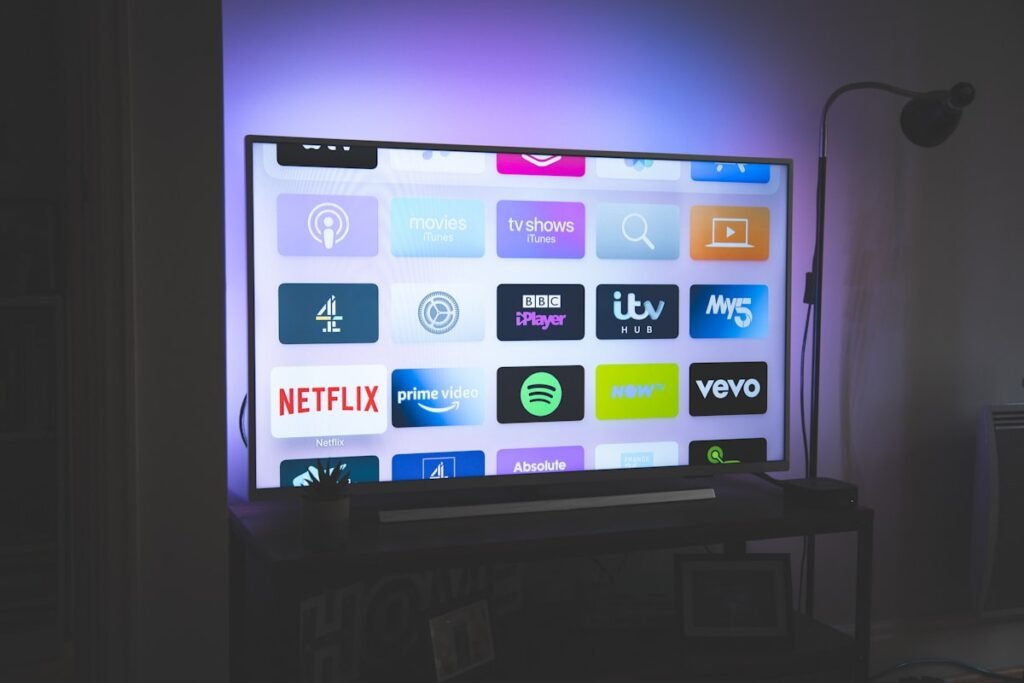
Choosing the best IPTV player for a smart TV is mostly a question of what your television’s app store will actually let you install. Samsung, LG, Android TV and webOS sets all differ, and the app that works perfectly on one platform may not exist on another. This guide explains what to look for, which app types are available on each major smart TV platform, and how to set one up so that the guide, favourites and remote control all behave properly. Why the app matters more on a TV On a phone, a poor interface is an annoyance. On a television, you are navigating with a remote from across the room, so small controls, slow channel switching and an unusable program guide become deal-breakers. The player has to be genuinely TV-first: large targets, sensible focus states and a layout you can read from the sofa. Smart TV platforms and what runs on them Android TV and Google TV The most open platform. Full IPTV players are available through the Play Store, and the interface is designed for a remote. If your television runs Google TV, this is the easiest path. Samsung Tizen Samsung restricts which apps appear in its store, so availability varies by region and model. If a dedicated player is not offered, the usual workaround is a streaming stick with a wider app catalogue. LG webOS Similar situation to Samsung: a curated store with inconsistent coverage for IPTV clients. Roku, Fire TV and Apple TV Not smart TVs in the panel sense, but they are what many people actually use. App availability differs again — Fire TV is the broadest, while Apple TV is the most restrictive. Features worth prioritising Electronic program guide with catch-up where your provider supports it. Fast zapping — channel change speed is the most used feature in a player. Favourites and group ordering so the app opens on your channels, not a 2,000-item list. Remote-friendly navigation — direct number keys, page up/down and a working back button. Resume and last-channel — a small feature that changes daily use. Parental lock with a PIN if the TV is shared. Picture settings passthrough — colour space and frame-rate handling for sports and films. Platform-specific install steps are covered in our IPTV on smart TV setup guide, and our Sony smart TV walkthrough covers Android TV sets in detail. Setting up IPTV on a smart TV Identify your TV’s platform — Settings, then About or System. Search the platform’s own store for IPTV players and note the developer of each. Install your chosen player and pick the source type your provider issued: M3U playlist or server credentials. Enter the details exactly, including any port number. Let the first full load complete before judging speed. Rearrange groups, set favourites and pin the app to the home screen. Test channels across several groups and note which change fast. If the TV’s store has no suitable app, an external streaming stick restores full choice — our best IPTV devices list covers which ones to consider. Picture and network settings Match the frame rate. Enable auto frame-rate or motion smoothing off so sports do not judder. Prefer wired. Ethernet on the TV removes the most common cause of stutter. Use 5 GHz Wi-Fi if the TV is close to the router, otherwise 2.4 GHz travels further. Close background apps on the TV before you test quality. Set the player’s buffer deliberately. A larger buffer smooths weak connections at the cost of latency. For help when the picture freezes or drops, follow our IPTV buffering troubleshooting guide. Install with care Only install players from your TV’s official store or a developer’s own site. Sideloading an APK from an unknown mirror is the single most common way people end up with a modified app that reads their subscription credentials. Frequently Asked Questions Why can’t I find IPTV players on my Samsung or LG TV? Those platforms curate their stores and coverage varies by region and model. An Android TV or Fire TV stick is the usual workaround when the native store has nothing suitable. Is one app better for all smart TVs? For Android TV and Google TV sets, yes — the same apps work across brands. Samsung and LG each need apps available in their own stores. Do I need a separate subscription for the player? No. You pay your IPTV provider for content; the player is software. Be wary of any app asking for a second subscription. Should I use wired or Wi-Fi? Wired where possible. It removes packet loss and interference, which are the two most common causes of stutter on a television.
Best IPTV Player for Android: Apps, Setup and What to Look For
Finding the best IPTV player for Android is a different problem from choosing an IPTV service. The player is the app that reads your playlist or credentials and renders the channels, so it decides how quickly you can find something to watch, whether the guide works, and how gracefully the app copes with a weak connection. This guide covers what separates good players from poor ones, which app types are available on Android, and how to set one up without exposing your subscription details. What an IPTV player actually does An IPTV player is a client. It loads a playlist or signs into a provider portal, then organises live channels, the electronic program guide and on-demand content into something you can navigate. It does not include channels of its own — you supply the source. That distinction matters: if a “player” advertises its own channel line-up bundled into the app, you are looking at a service, not a player. Types of Android IPTV players Playlist players (M3U and Xtream Codes) The most common type. You paste an M3U URL or enter server credentials, and the app builds your channel groups. These are flexible and work with almost any provider. Provider apps Some services publish their own branded app in the Play Store. They are usually the smoothest option, since the app and the service are built together, but they lock you to that provider. General media players VLC and similar apps can play an M3U playlist directly. They are a good fallback, though the channel-browsing experience is basic compared with a dedicated player. What makes the best IPTV player for Android Fast channel switching — the single most noticeable difference between apps. A usable electronic program guide — catch-up, reminders and a searchable schedule. Group management — the ability to reorder, favourite and hide channel groups. Playlist refresh — background updates so you do not re-enter credentials every week. Playback controls — aspect ratio, buffer sizing and hardware decoding toggles for difficult streams. Parental controls — PIN-protected groups if the household includes children. Chromecast and Android TV support — a phone-sized app is unusable on a television without a proper TV interface. Responsible data handling — the app should store credentials locally, not transmit them to a third party. For the wider field across platforms, see our roundup of the best IPTV player apps. Setting up an IPTV player on Android Install the player from the Play Store or the developer’s official site — avoid third-party APK mirrors, which are the most common source of tampered builds. Choose the source type your provider gave you: M3U playlist or server credentials. Paste the details exactly as issued, including any port number. Wait for the first full load — the guide can take a minute to populate on a large line-up. Reorder or hide the groups you do not watch so the app opens on something useful. Test a handful of channels across different groups before you rely on it. If you are starting from a Fire TV device instead, our IPTV on Android walkthrough covers the same steps in that environment. Wi-Fi and performance Apps cannot fix a weak signal. For steady playback on a phone or tablet: Test from where you actually sit, not next to the router. Prefer 5 GHz Wi-Fi at close range, or 2.4 GHz when you are further away. Close other bandwidth-heavy apps before you judge picture quality. Use a wired Ethernet adapter on Android TV boxes where possible. Update the app regularly — playback fixes ship often. Security checks before you install anything Confirm the developer name and download source. Read recent reviews for reports of credential theft or unexpected network behaviour. Never type your subscription details into a website that is not your provider’s domain. Use a unique password for your IPTV account so a leak elsewhere does not expose it. Check what permissions the app requests — a player has no need for your contacts. Frequently Asked Questions Is an IPTV player free? Many are free with an optional paid unlock for extra features. Be cautious of any app that demands a separate subscription to watch channels you already pay for elsewhere. Can one player work with any IPTV service? Playlist-based players work with any service that provides an M3U URL or server credentials. Provider-branded apps only work with that provider. Why does the guide not load straight away? Guide data downloads separately from the channel list and can take a while on a large line-up. If it never populates, confirm your credentials with your provider. Do I need a VPN to use an IPTV player? Players do not require one. Whether you need one depends on your own network and privacy preferences, not on the app itself.
Does IPTV Have ESPN? What to Know Before You Subscribe

The short answer is that IPTV can include ESPN, but only if the provider’s published channel list says so and your plan tier covers it. There is no universal answer: sports rights, regional versus national feeds and plan levels all change what a given service actually carries. This guide explains how to check properly, what the different ESPN channels actually are, and which questions to ask before you subscribe — so you do not find out after payment that the network you wanted was on a higher tier. Why “does IPTV have ESPN” has no single answer Three things decide it: The provider’s licensing. Each service assembles its own line-up. Two IPTV providers with identical prices can carry different sports packages. The plan tier. Main national sports channels are often standard, while conference networks, regional sports and premium event channels may sit on a higher tier. The feed type. National feeds, regional feeds and out-of-market packages are separate products. Confirm which one you are buying. The only authoritative source is the current channel list published by the provider you are considering — not a blog claim, not a screenshot from an old review. The ESPN channels worth checking for Main network The flagship channel carries regular-season games, studio shows and major events across several sports. It is the baseline most viewers mean when they ask the question. Primetime and extra channels Additional linear channels exist to carry overlapping fixtures. If your household watches on busy nights, check that these are present, because a single main channel is not enough when several games start at the same time. Conference and college channels College sports networks are frequently the ones that vary most between plans. Verify them individually rather than assuming that because the main network is included, the conference channels are too. Regional sports Regional sports networks are licensed market by market. This is the category most likely to require confirmation for your specific area. See our breakdown of IPTV sports channels for how these categories are usually grouped. How to check before you pay Open the provider’s published channel list and use the search function. Search for each network name individually — do not rely on a “sports” folder screenshot. Note which plan tier each channel sits on. Confirm the electronic program guide is present for those channels. Ask support in writing whether the channels you listed are included on the exact plan you are buying, and keep that message. Our longer guide to watching live TV on IPTV covers the same verification habit for news networks. IPTV vs streaming-only sports options Some viewers are deciding between IPTV and a dedicated sports streaming subscription. The trade-off is breadth versus certainty: a sports-focused service will always carry its own rights, while an IPTV line-up gives you far more channels in one place but requires you to check the list yourself. For the direct comparison on one specific alternative, read our IPTV vs ESPN+ comparison, which looks at regular-season coverage, live events and what each approach costs over a season. Technical requirements for smooth sports streaming Live sports is the least forgiving content type for a weak connection. High motion plus ad breaks is where compression artefacts show up first. Prefer a wired connection for the main TV — Ethernet removes the most common cause of stutter. Test in the evening when household and neighbourhood usage peaks. Count simultaneous streams — a phone and a TV at the same time split bandwidth. Close background downloads on other devices during a game. Use a device that handles high bitrates — an Android TV box or NVIDIA Shield is steadier than the cheapest stick for fast-motion content. If you see freezing or dropouts, our buffering fixes walks through the diagnostic order that resolves most cases. Questions to ask a provider Which exact ESPN and college sports channels are on this plan? Which plan tier are they on? Is my regional sports network included? How many devices can stream at once during a busy night? Is there a trial so I can verify the channels myself? What happens to my package if a channel moves tier mid-contract? Frequently Asked Questions Does every IPTV service carry ESPN? No. Sports is the category where line-ups differ most. Only the provider’s current channel list answers this for a specific service. Is ESPN included on cheaper IPTV plans? Sometimes the main network is standard while extra and conference channels sit on a higher tier. Check the tier for each channel individually. Can I watch regional sports on IPTV? If the service carries your market’s regional sports network. This is the item most worth confirming in writing before you pay. Will a basic internet connection handle live sports? Usually, if it is stable and wired where it matters. Test in the room with the TV during peak hours before you judge it.