
IPTV voice control lets you change channel, pause a stream or search a playlist hands-free through Alexa or the Google Assistant instead of typing on an on-screen keyboard. It works best when the player you use exposes itself to the assistant, and it falls flat when it does not — so the setup steps below matter more than the wording you speak.
Here is how voice control actually behaves on IPTV, what to configure on both sides, and which commands are realistically available today.
What IPTV voice control can and cannot do
Voice assistants integrate with streaming apps through skills and device links. The commands that are reliably available:
- Playback control — play, pause, resume, stop, rewind and fast-forward.
- Volume and mute — “turn it up”, “mute”, “set volume to thirty”.
- Launching an app — opening a supported player by name on a compatible streaming device.
- Content search inside a linked app — asking for a programme by name when the app supports it.
- Device control — turning the TV on or off, switching inputs, and controlling a Fire TV Stick by voice.
What it generally cannot do is drive a raw M3U playlist. Voice assistants do not browse a text file of channel links for you; they interact with recognised apps and devices. If your IPTV setup is a bare playlist loaded into a player, expect playback control at best, and expect nothing until that player is linked.
Set up Alexa for IPTV
- Open the Alexa app and confirm your streaming device or smart TV is listed under Devices.
- Open Skills & Games, search for the streaming app you use, and enable its skill if one exists.
- Link the skill with the same account you use inside the app. A mismatch here is the most common cause of “I don’t find that” replies.
- Ask Alexa to launch the app by name and start playback to confirm the link works.
- Group the TV and speaker in the same room so a bare “play” or “pause” routes to the right device.
If you are still choosing the box this runs on, our best Firestick for IPTV in 2026 list covers devices with Alexa built in, and IPTV Firestick setup covers the install side.
Set up Google Assistant for IPTV
- On an Android TV or Google TV device, sign in with the same Google account the assistant uses.
- Open the Google Home app, confirm the TV appears, and check it is in the correct home and room.
- Link the streaming app’s account under Works with Google if the app offers it.
- Assign the TV as the default media device for casting and playback requests.
- Test with a launch command and a playback command before relying on it.
Android TV users can continue with our IPTV Android TV setup guide for the app installation steps that come before this.

Voice remote vs smart speaker
There are two distinct ways to control IPTV by voice, and they are often confused:
- Voice remote — the microphone is on the remote, commands go straight to the streaming device, and there is no account linking involved. This is the more reliable option for channel surfing.
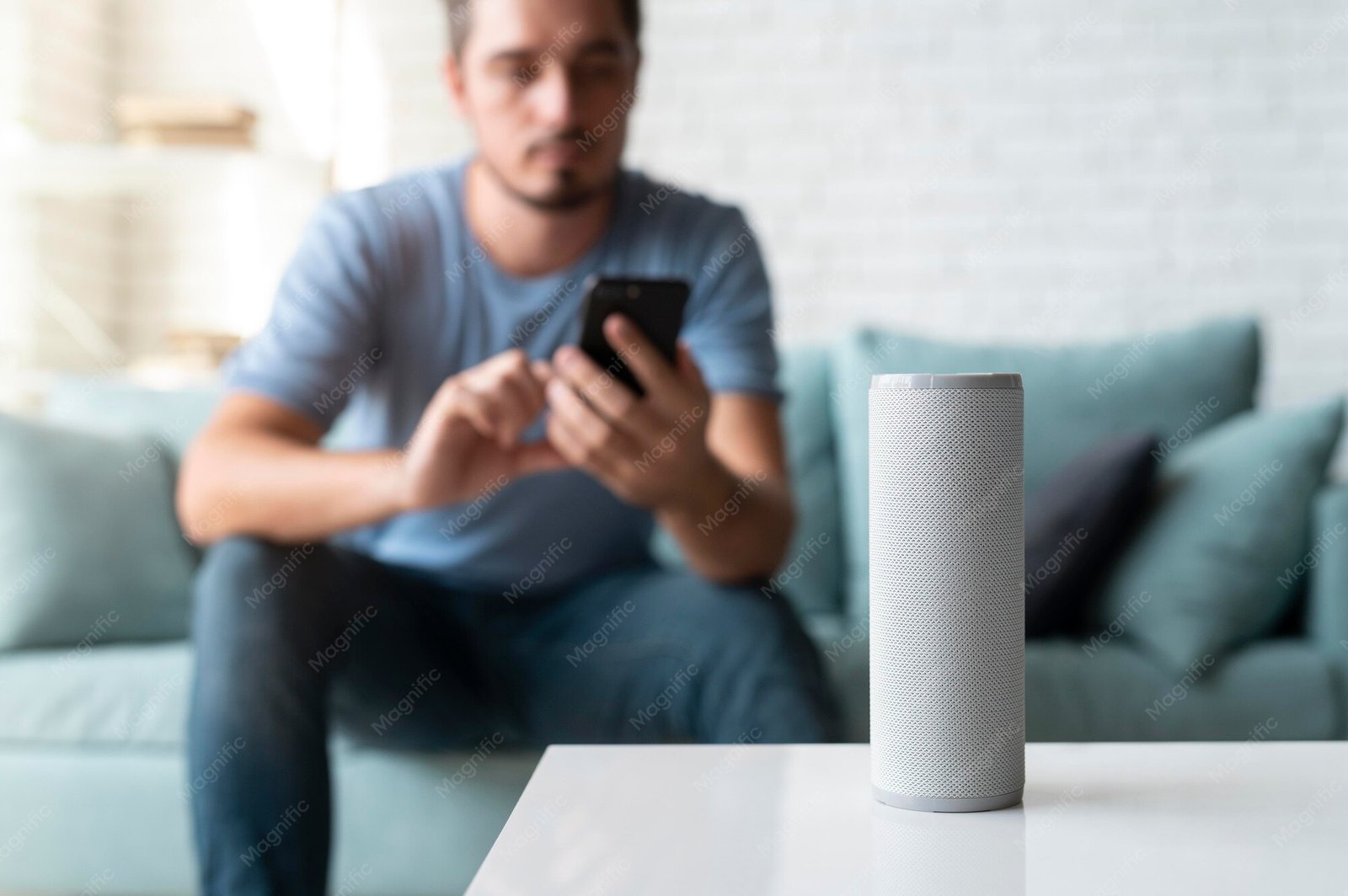
- Smart speaker in the room — the request travels to the cloud and back to whichever device the assistant considers active. It works from the sofa without holding anything, but it depends on the app being linked and on the correct device being targeted.
Most households end up using both: the remote for what they are watching now, and the speaker for hands-free moments. Our overview of IPTV remote control apps covers the app-based alternative if you would rather use a phone.
Troubleshooting voice commands
- “I don’t see that device” — the phone and the assistant must share an account with the TV, and both must be on the same network.
- Command runs on the wrong screen — set the default playback device and check the room grouping.
- App launches but will not play — the skill is linked but the session inside the app has expired. Open the app once and sign in again.
- Search returns nothing — content search only works where the app implements it. Channel names from a raw playlist usually are not indexed.
- Works, then stops responding — check for muted microphones on the speaker, and for software updates pending on the TV.
If audio arrives but the picture fails, that is a different problem — see our fixes for IPTV audio not working.
Frequently Asked Questions
Can Alexa change IPTV channels for me?
Only when the player or streaming service is linked to Alexa and exposes channel selection. With a bare playlist, expect playback and volume control rather than direct channel hopping.
Do I need a smart speaker to use voice control?
No. A voice remote on a Fire TV Stick or Google TV remote gives you hands-free control on the device itself, with no speaker required.
Why does the assistant say it cannot find my TV?
Usually an account mismatch, a device on a guest network, or the TV not being assigned to a room. Re-check all three before reinstalling anything.
Does voice control work when the internet is down?
No. Assistant commands are processed in the cloud, and the IPTV stream itself needs the connection too. Local app controls on the remote continue to work.