
A Raspberry Pi can run IPTV as a dedicated, always-plugged-in television box: a small board that boots straight into Kodi, loads your playlist and starts live TV in under a minute. It is a good fit if you have a spare Pi, want a device no one can accidentally reinstall apps on, or simply prefer hardware you control yourself.
This guide covers what hardware you need, the two ways to run IPTV on a Pi, how to add your playlist and program guide, and the performance limits to know before you expect 4K from a board that fits in your palm.
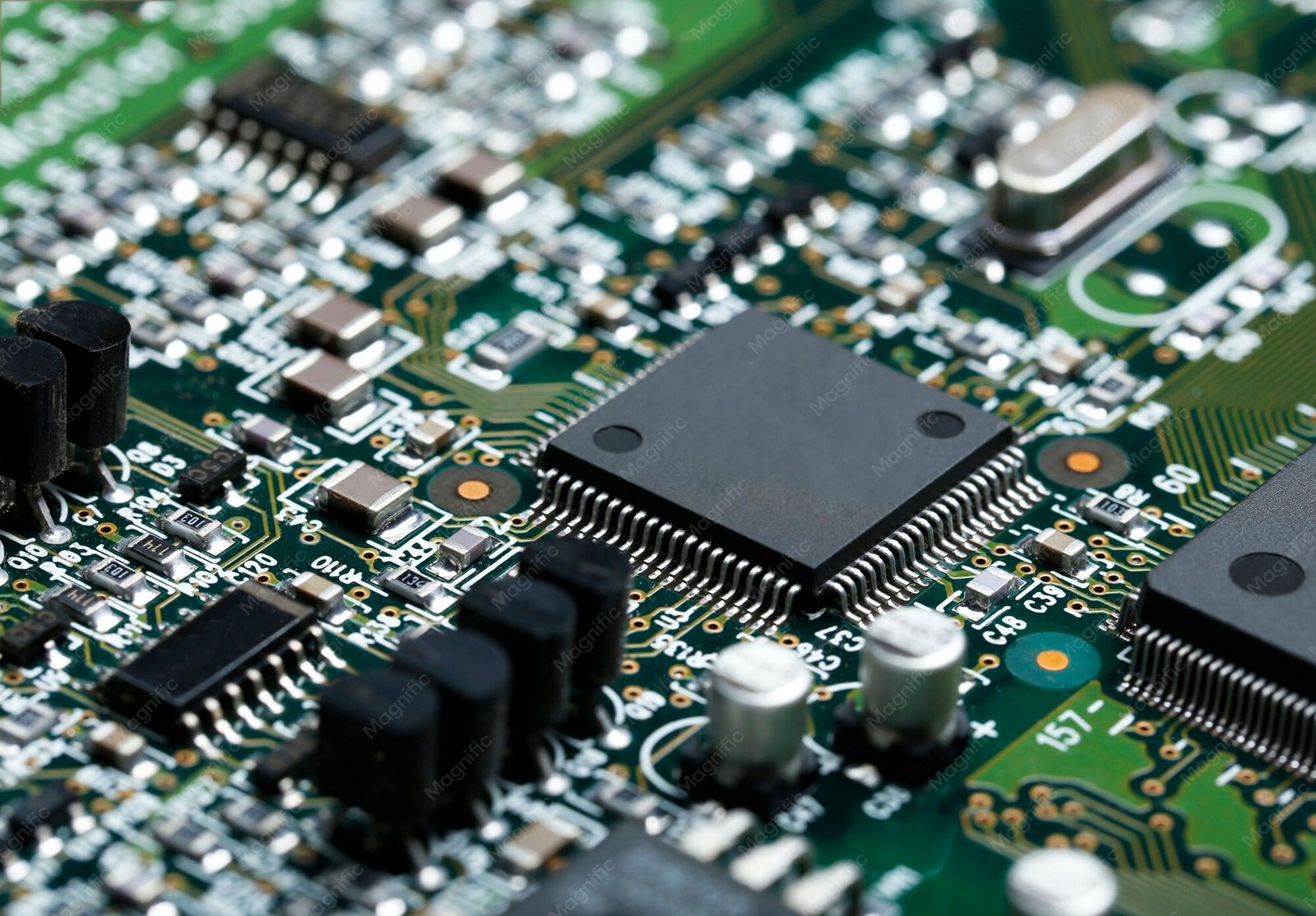
What you need for IPTV on a Raspberry Pi
- Raspberry Pi 3B+ or newer. A Pi 4 or Pi 5 handles HD reliably and is the sensible choice in 2026; a Pi 3 works but struggles with high-bitrate streams.
- MicroSD card, 16 GB or larger, ideally a name-brand card rated for continuous video recording.
- Stable power supply matching your board’s official charger. Undervoltage causes the random black screens people mistake for software faults.
- Ethernet, where possible. The Pi’s wired connection removes the Wi-Fi variability that causes most buffering.
- HDMI cable for your board (micro-HDMI on Pi 4/5, standard HDMI on earlier models) and a TV that supports HDMI-CEC, so your existing TV remote works.
Software comes from two official projects: Raspberry Pi Imager writes the operating system to the card, and Kodi is the media player that renders the streams.
Two ways to run IPTV on the Pi
Option A: LibreELEC — a dedicated Kodi appliance
- Download LibreELEC for your Pi model from libreelec.tv.
- Flash it to the microSD card with Raspberry Pi Imager.
- Boot the Pi. It starts straight into Kodi with no desktop in between.
- In Kodi, open Add-ons → My add-ons → PVR clients and install PVR IPTV Simple Client.
- Enter your M3U playlist URL (or Xtream Codes details) and the EPG URL, then restart Kodi.
LibreELEC boots faster, updates itself and has no desktop for anyone to break. This is the recommended route for a TV that lives in the living room.
Option B: Raspberry Pi OS with Kodi installed
- Flash Raspberry Pi OS with the Desktop to your card.
- Boot, connect, and install Kodi following the instructions on kodi.tv.
- Launch Kodi from the desktop menu and configure PVR IPTV Simple Client exactly as in Option A.
This route suits you if the Pi also does other jobs — a media server, an ad blocker or a light desktop — but it boots slower and exposes a full desktop to whoever picks up the remote.
Add your playlist and program guide
The setup inside Kodi is identical for both options. IPTV Simple Client accepts either an M3U playlist URL (the link your provider gives you) or Xtream Codes API details (host plus username and password), plus a separate EPG URL for the program guide. Save, restart Kodi once, and your channels appear under the TV or Radio nodes in the main menu.
Step-by-step screenshots for every field, including local playlist files and playlist groups, are in our Kodi IPTV setup guide. If you decide a Pi is more setup than you want, the same playlists run on far simpler hardware — compare options in the best IPTV devices guide.
Performance tips
- Pi 4 or Pi 5 for HD and 4K. The Pi 3 is fine for standard-definition and light HD streams, but high-bitrate channels will stutter.
- Use wired Ethernet. One cable removes most buffering reports that get blamed on the provider.
- Enable hardware decoding in Kodi’s player settings if you see dropped frames on high-resolution channels.
- Give the Pi breathing room. A case with a heatsink or fan prevents thermal throttling during a three-hour event.
- Overclocking rarely helps IPTV. Network speed and decoding matter far more than CPU speed here.
Troubleshooting
“No channels found”
Re-check the playlist URL for a typo and confirm it opens on a computer first. If your provider issued a short-lived link after a password change, regenerate it. Our guide to fixing IPTV login problems covers the common causes in order.
Buffering on every channel
Test with Ethernet before blaming the stream. If wired playback is clean, the Wi-Fi path was the problem. If it buffers on Ethernet too, the issue is upstream of your Pi.
Remote does nothing
Enable HDMI-CEC under Kodi’s system settings so your TV remote navigates Kodi. Otherwise pair a Bluetooth keyboard or use the Kodi mobile remote app.
Frequently Asked Questions
Which Raspberry Pi model should I buy for IPTV?
A Pi 4 or Pi 5 with at least 2 GB of RAM. They decode HD and 4K comfortably, and the Pi 5 leaves headroom for future streams.
Does the Pi replace a Fire TV Stick?
Functionally yes, once configured. The stick is cheaper and simpler to buy pre-assembled; the Pi is more flexible and repairable. Both run the same playlists and players.
Can a Raspberry Pi play 4K IPTV streams?
Pi 4 and Pi 5 can, provided the stream’s codec is hardware-decoded and your network keeps up. Wired Ethernet is close to mandatory at 4K bitrates.
Do I need a keyboard to set it up?
For the initial configuration, yes — a USB or Bluetooth keyboard makes entering playlist URLs painless. After setup, HDMI-CEC lets you navigate everything with the TV remote.